Recovering deleted files on your iPhone may seem like a challenging task, especially if your data is lost permanently and you don’t have any adequate backup. If you find important files getting permanently deleted from your iPhone, it’s important to immediately proceed with adequate recovery workarounds. In this article, we will discuss quick steps on how to recover permanently deleted files from an iPhone without backup. Let’s get started!
Common Reasons for Permanent Deletion of Files on iPhone
Understanding the exact reason for data loss on your iPhone can help you determine adequate recovery workarounds. Some prominent reasons include:
Manual Deletion
You might have deleted files while browsing other files and folders on your iPhone. Deleted files go to the Recycle Bin folder, and when you empty it, all your data gets permanently deleted.
Factory Reset or “Erase All Content and Settings”
These reset options wipe all the data permanently from your iPhone. If performed without a backup, recovery becomes extremely difficult.
iOS Update or Software Glitches
Issues like interrupted updates, unexpected system crashes, or compatibility issues on your iPhone during an iOS update lead to permanent deletion of stored files.
iCloud Sync Overwrite or Sync Errors
If you’ve synced your iPhone with iCloud, deleting files from any synced device deletes files across all devices. This can result in files being permanently removed everywhere.
Malicious Programs
Though rare on iPhones, sometimes malicious programs like viruses or malware may infect your device and lead to data loss or unauthorised deletion.
Understanding Permanent Deletion of Files on an iPhone
Before jumping to recovery workarounds, it’s important to understand what “permanently deleted” actually means on an iPhone.
When you delete any file (such as photos, videos, documents, etc.) from your iPhone:
- They temporarily go to the “Recently Deleted” folder (kept for 30 days).
- After that, iOS removes them from visible storage.
- However, the data may still exist temporarily in the device memory until overwritten.
Step-by-Step Guide to Recover Deleted Files Using iPhone Data Recovery Software
Now that you are familiar with different reasons for permanent deletion of files from your iPhone, it’s important to immediately apply adequate recovery workarounds. If you don’t have a backup of your lost files, you can try third-party iPhone data recovery software to restore your files. Tools like Stellar Data Recovery for iPhone are especially designed to help you restore files deleted due to accidental deletion, formatting, system failure, and many other reasons. You can use this software to restore deleted files of various types, including photos, videos, documents, emails, and many other types of files in various file formats.
Key Features of Stellar Data Recovery for iPhone
Here are some amazing features that make Stellar the best choice for your iPhone data recovery:
- It works in multiple data loss scenarios such as accidental deletion, system crashes, factory reset, or failed updates.
- The software offers both Quick scan and Deep scan modes. This helps recover files even after permanent deletion when a quick scan fails.
- The Preview feature of this software lets you preview the recoverable files before restoring them to your device.
- The software is designed with a simple and easy-to-use interface, which is best for non-technical users.
Quick Steps to Restore Deleted Data Using This iPhone File Recovery Software
Step 1: Download and install the Stellar Data Recovery for iPhone software from its official website on your computer. Also, connect your iPhone to that device using a reliable USB cable.
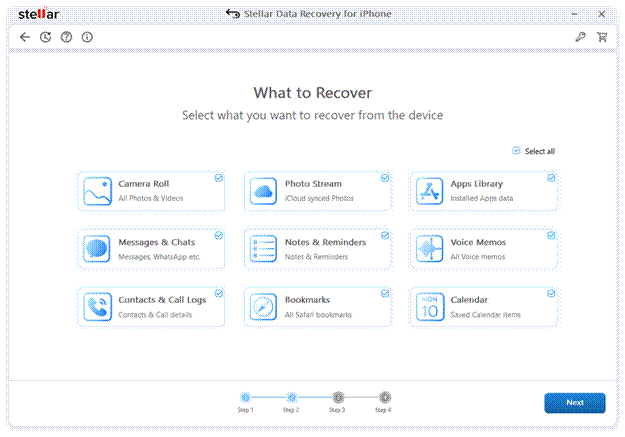
Step 2: Once installed, launch the application and from the homepage, select the type of file you need to restore. Click Next to continue.
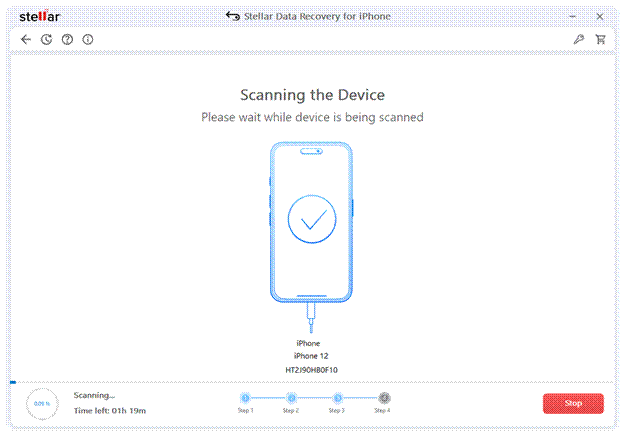
Step 3: Click on the Scan button to begin analysing your iPhone’s storage. The scanning process may take a few minutes, depending on your device’s storage.
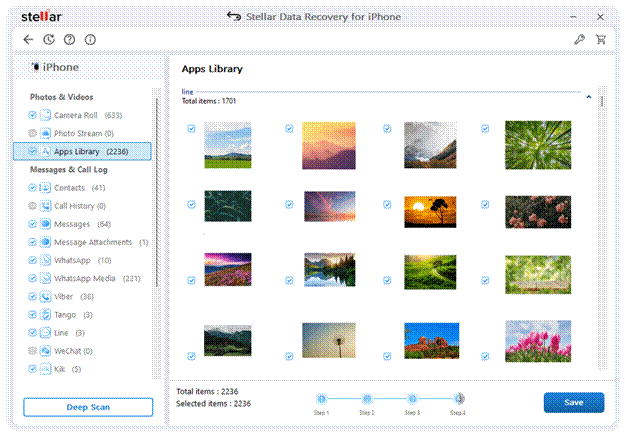
Step 4: Once the scan is complete, you can preview all recoverable files. Select the files you want and click Save to save selected files back to your computer or any secure location.
That’s it! It’s very simple to recover deleted files from an iPhone without a backup using the all-in-one Stellar Data Recovery for iPhone tool.
Additional Tip: How to Prevent Data Loss on iPhone?
Recovering lost files with or without backup on your iPhone is an easy task, but it’s better to avoid such data loss issues. Here are the most effective ways to keep your files safe:
- Enable iCloud Backup: Ensure your device is synced to iCloud backups, as it automatically creates copies of the stored files and folders.
- Avoid Accidental Deletions: Be cautious while deleting files from your iPhone. Always double-check before confirming deletion, especially for photos and documents.
- Keep Your iPhone Updated: Regular iOS updates fix bugs and improve system stability. Updates reduce the risk of data loss caused by software glitches.
- Avoid Jailbreaking: Jailbreaking removes Apple’s security protections, increasing malware risks, causing system instability, and potential data loss; staying on official iOS ensures better safety.
Conclusion
Data loss on your iPhone can put you in trouble, but don’t lose hope! Recovering permanently deleted files from an iPhone without a backup is difficult—but not impossible. You can try third-party iPhone file recovery software such as Stellar Data Recovery for iPhone to restore your deleted iPhone photos, videos, messages and other files with ease. The key is to act quickly, as the sooner you act, the easier it will be to restore deleted files.
Frequently Asked Questions (FAQs)
Where to find deleted files on iPhone?
Check Recently Deleted in Photos, Files, and Notes apps, search Messages attachments, and review iCloud storage or backups for recently removed items.
Can I recover files deleted a long time ago?
Recovery is possible but unlikely; older deleted files may be overwritten. Success depends on the time passed, device usage, and recovery tools used.
Can data be recovered after a factory reset on an iPhone?
Recovery after a factory reset is difficult; data is erased securely, but partial recovery may be possible using backups or professional iPhone data recovery software.





Be First to Comment