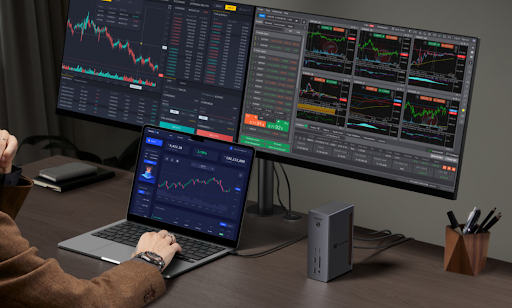
Apple’s MacBook Air has evolved far beyond its old reputation as simply the light laptop for basic tasks. The latest models are positioned as capable machines for work, study, multitasking and even more demanding creative use, while still keeping the defining qualities of the Air line: portability, efficiency and a clean, minimal design. That combination is exactly why so many users in the UK now treat the MacBook Air not just as a travel companion, but as the centre of their main working setup.
But that shift creates a familiar problem. The laptop may be sleek and powerful, yet most desk environments ask for more connectivity than the MacBook Air offers by itself. Add an external monitor, storage, wired internet, keyboard, mouse, audio gear and charging, and suddenly a highly refined laptop starts to feel constrained by its own simplicity. That is where the idea of a dedicated macbook air dock becomes especially relevant.
Among the many dock options on the market, one category remains especially important for MacBook Air buyers: the thunderbolt 4 dock. The reason is straightforward. Apple’s current MacBook Air models use Thunderbolt 4 / USB 4 ports, which makes Thunderbolt 4 docks a very natural match for the laptop’s native connectivity standard. For many buyers, the real question is not whether a dock is useful, but whether Thunderbolt 4 is still enough in 2026, particularly when external display support has become a key part of productivity.
The short answer is yes: for most MacBook Air users, a thunderbolt 4 dock is still enough. The longer answer depends on which MacBook Air model you own, how many external displays you want to use, and whether you are building a practical desk for today or buying accessories with future upgrades in mind. That distinction matters, because Apple’s display support varies by MacBook Air generation, and dock selection only makes sense when it reflects the actual host machine on the desk.
Why the dock question matters more for MacBook Air users than before
The modern MacBook Air is more likely than ever to be used as an all-day main computer. It may begin the morning on the kitchen table, continue in a meeting room, move to a café or library, and end the day attached to a monitor in a home office. That kind of flexibility is part of its appeal. But the more often a laptop moves between mobile and fixed working environments, the more valuable a dock becomes.
A macbook air dock solves a very practical problem. Instead of manually reconnecting a monitor, charger, storage drive and accessories every time the laptop returns to the desk, a dock can centralise those connections into a far cleaner system. That reduces friction, improves organisation and makes the transition from portable laptop to proper workstation feel almost instant. For hybrid workers and home-office users, that change often matters more than any individual spec.
This is also why display support has become such a common point of concern. For many professionals, students and remote workers, an external monitor is the first serious upgrade to a laptop-based workspace. Once one screen enters the setup, people naturally begin asking whether they can run two. And once that question appears, dock choice becomes part of the discussion.
First, understand what your MacBook Air itself supports
The most important thing to understand is that a dock does not magically increase the MacBook Air’s maximum number of supported displays. Apple states this very clearly: using a supported hub or daisy-chaining displays can help connect displays through one Thunderbolt port, but it does not increase the maximum number of displays your MacBook Air can support at the same time. In other words, the limit comes from the MacBook Air model itself, not from how ambitious the dock appears on paper.
That point is crucial because a lot of confusion in the dock category comes from marketing language around connectivity headroom. Buyers often assume that a more advanced dock means more displays regardless of host device. In reality, the dock is best understood as an enabler of the laptop’s built-in capability. If the MacBook Air supports a certain number of displays, the dock helps you access that support more cleanly and more conveniently, but it does not rewrite the underlying hardware limit.
Apple’s support documentation shows that the answer depends on chip generation. Current MacBook Air models with the M4 chip support up to two external displays simultaneously in addition to the built-in display, depending on resolution and refresh rate. Apple also notes that closing the lid on an M4 MacBook Air does not increase the number of external displays supported.
For MacBook Air with the M3 chip, Apple says you can use two external displays simultaneously when the lid is closed, provided the requirements are met. That means M3 brought a significant improvement over earlier Air expectations, but the exact behaviour differs from M4 because lid position matters more on M3 than on M4.
This means the answer to “how many screens can a MacBook Air support?” is not one fixed number for every buyer. It depends on which MacBook Air you own. If you are working with a recent M4 MacBook Air, Apple says up to two external displays can be used alongside the built-in display. If you are using an M3 MacBook Air, dual external display support exists, but Apple’s instructions tie that configuration to closed-lid use.
So, is a Thunderbolt 4 dock enough?
For the overwhelming majority of MacBook Air buyers, yes. A thunderbolt 4 dock is enough because it already aligns with the MacBook Air’s native port standard and supports the kind of desk expansion most Air users actually need: external displays, charging integration, fast storage, wired networking and USB accessories. In practical terms, that is exactly what most users expect from a good macbook air dock.
It is worth stressing that “enough” here does not mean bare minimum. It means fully appropriate. MacBook Air is designed around balance rather than excess. Apple gives it Thunderbolt 4 ports, not a heavier workstation-class I/O strategy, because the Air is meant to remain light, quiet and flexible. A thunderbolt 4 dock complements that identity well. It expands the machine into a stronger desk setup without becoming disproportionate to what the laptop is built to do.
For a typical UK user, that may mean one cable bringing together a monitor, SSD, ethernet, keyboard, mouse and charging. For others, it may mean a dual-display home office that lets the MacBook Air behave more like a desktop during the day and a portable machine the rest of the time. In both cases, Thunderbolt 4 is not just acceptable. It is the natural fit.
How many displays can you realistically expect with a Thunderbolt 4 dock?
This is the question many buyers care about most, and the answer should be framed carefully.
If you own a current M4 MacBook Air, Apple states that it supports up to two external displays simultaneously in addition to the built-in display, depending on resolution and refresh rate. Apple also says those displays can connect through the Thunderbolt 4 ports, and that the laptop can support configurations such as two external displays up to 6K at 60Hz or 4K at 144Hz, again depending on the specific display setup.
If you own an M3 MacBook Air, Apple says you can connect two external displays simultaneously when the lid is closed, with the first display supporting up to 6K at 60Hz or 4K at 144Hz, and the second up to 5K at 60Hz or 4K at 100Hz under the documented conditions.
So if the question is whether a thunderbolt 4 dock can support two screens on a MacBook Air, the answer is yes, but only if the MacBook Air model itself supports that display configuration. The dock helps provide the connection pathway and keeps the desk cleaner. It does not grant extra display support beyond Apple’s own model limits.
For many buyers, that means the practical maximum today is two external displays on the right MacBook Air generation. But it is important not to assume that every MacBook Air behaves the same, and equally important not to assume that a more expensive dock automatically unlocks more screens.
Why a Thunderbolt 4 dock makes sense for single-display users too
It is easy to focus only on the dual-monitor question, but many MacBook Air users still run a single external monitor. In that case, a thunderbolt 4 dock remains extremely valuable. The benefit is not just more screen space. It is the way a dock simplifies the whole setup around that screen.
A single-monitor desk often still includes multiple accessories: fast storage for backups, a webcam, wired networking, a mouse receiver, an audio device or a card reader. Without a dock, these connections can quickly become a chain of adapters and small compromises. With a proper macbook air dock, the desk becomes more predictable and more comfortable to use every day.
That matters because most productivity gains come from routine rather than spectacle. A cleaner setup, fewer repeated connection steps and an easier start to the working day often make a bigger difference than chasing the most aggressive connectivity spec available. For the MacBook Air audience in particular, that practical efficiency is often the real reason to buy a dock.
What a Thunderbolt 4 dock does not do
A thunderbolt 4 dock does not turn the MacBook Air into a different class of machine. It does not override Apple’s display limitations, and it does not automatically mean you should expect every theoretical display arrangement advertised by every dock vendor to work identically on every Air model. The dock is part of the setup, but the host laptop remains the defining factor.
It is also not necessarily the answer for buyers who are really shopping for future-proofing above all else. Some users are less interested in matching their current MacBook Air and more interested in buying desk infrastructure that may survive several future computer upgrades. In that case, they may start looking beyond Thunderbolt 4. But that is a different question from whether a Thunderbolt 4 dock is enough for a MacBook Air today. For today’s question, the answer remains broadly yes.
When Thunderbolt 4 is clearly the right choice
A thunderbolt 4 dock is especially well suited if your setup looks like this:
You use a MacBook Air as your main work laptop and want a cleaner one-cable desk. You run one or two external displays depending on model support. You need stable access to storage, accessories and perhaps ethernet. You want the laptop to feel more complete at the desk without overcomplicating the setup or paying for headroom that your current workflow will not use. Those are exactly the circumstances where Thunderbolt 4 feels most balanced.
This is also the best fit for the UK home-office audience, where desk space, clarity and convenience often matter just as much as raw specification. A MacBook Air is often chosen precisely because it keeps things efficient and portable. A thunderbolt 4 dock supports that philosophy rather than pulling the setup toward unnecessary excess.
The smartest way to think about it
The smartest way to judge a macbook air dock is not to ask whether it sounds impressive enough. It is to ask whether it makes the MacBook Air easier to live with at the desk.
Does it let you connect your display or displays without cable chaos? Does it make it easy to arrive, plug in once and start working? Does it fit the actual display limits of your specific MacBook Air model rather than promising more than the laptop can deliver? If the answer is yes, then it is doing the job that matters.
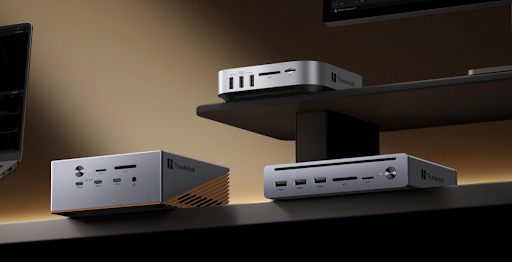
UGREEN operates in exactly this kind of setup category, where laptop users want a cleaner, more practical and more efficient way to turn a portable computer into a proper workstation. For MacBook Air users, that usually means choosing a dock that feels proportionate, modern and easy to integrate into everyday work rather than one that simply chases the newest headline specification.
Conclusion
So, is a thunderbolt 4 dock enough for a MacBook Air? For most users, absolutely. Apple’s current MacBook Air models already centre their connectivity around Thunderbolt 4, which makes a thunderbolt 4 dock the most natural and practical expansion path for the vast majority of desk setups.
As for the display question, the maximum depends on the MacBook Air generation. Apple says current M4 MacBook Air models support up to two external displays simultaneously in addition to the built-in display, while M3 MacBook Air models support two external displays when the lid is closed under Apple’s documented conditions. A dock can help deliver that setup cleanly, but it does not increase the laptop’s maximum supported number of displays.
In other words, if you want a better desk setup for your MacBook Air right now, a good thunderbolt 4 dock is not only enough. It is very often the right answer.





Be First to Comment